
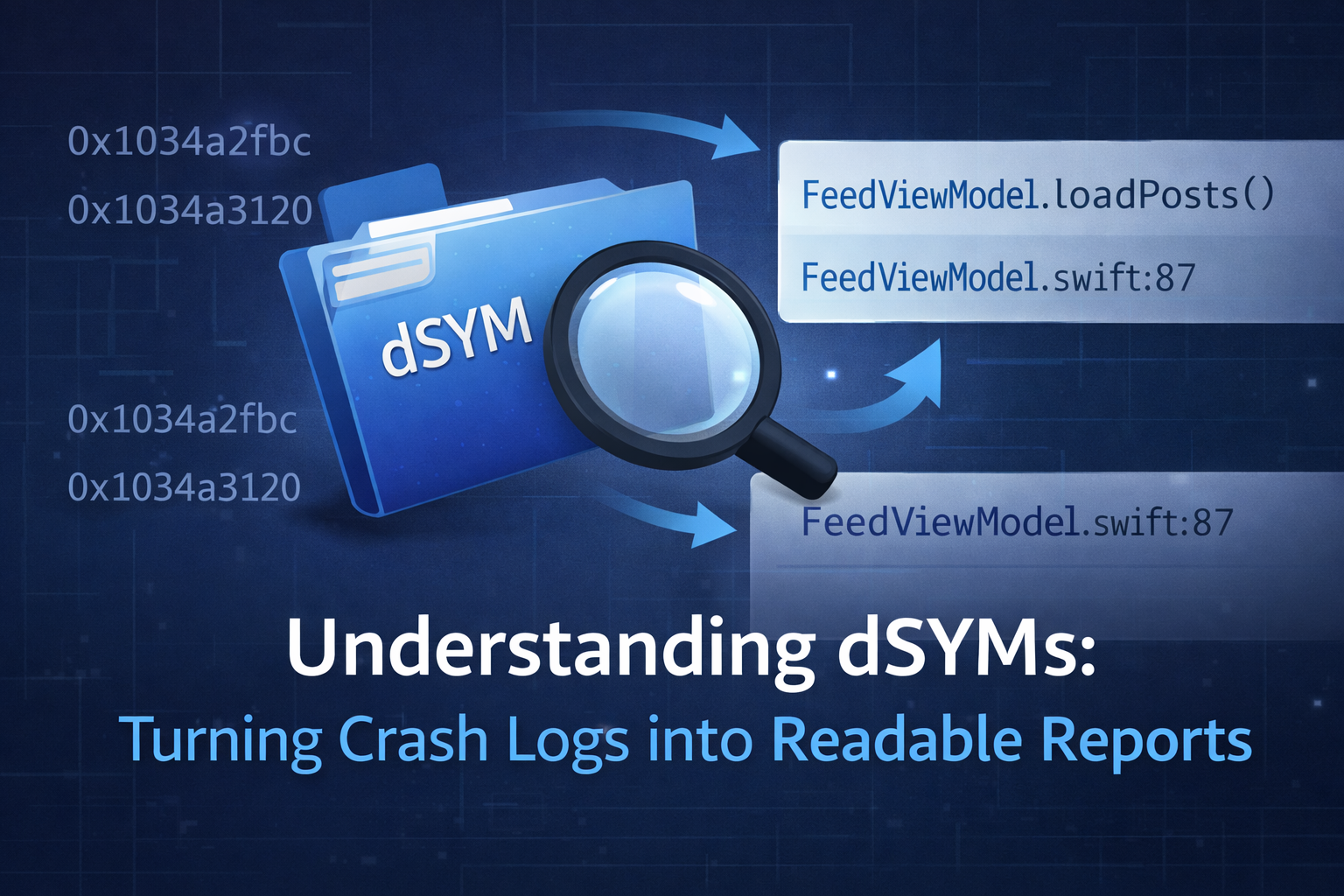
The Problems They Solve
TLDR:
dSYM aka debug Symbolsare files that help us translate gibberish memory addresses into human readable crash reports that tell us which file, function, and specific line a crash happened in.
As a software engineer, debugging software is half of our job. Doing this with QA configurations or debug schemes in Xcode is quite trivial because Xcode directly compiles our source code along with the debug symbols that allow us to do extensive debugging tricks like adding breakpoints and following stack traces.
But what happens in production apps? Let’s say we have an iOS app that is deployed to the App Store that’s crashing for our users. How do we pinpoint and solve this problem?
Well, I’m sure you’re already mumbling Crashlytics. And yes, you’re right. Crash reporting tools like Firebase Crashlytics do offer us a solution to the problem we just described above.
But did you know your app’s dSYM files are what makes those Firebase reports human readable?
Without dSYMs files, or debug symbols as they’re called, our app’s crash reports would just contain gibberish memory addresses that don’t make much sense to any of us.
What’s Happening
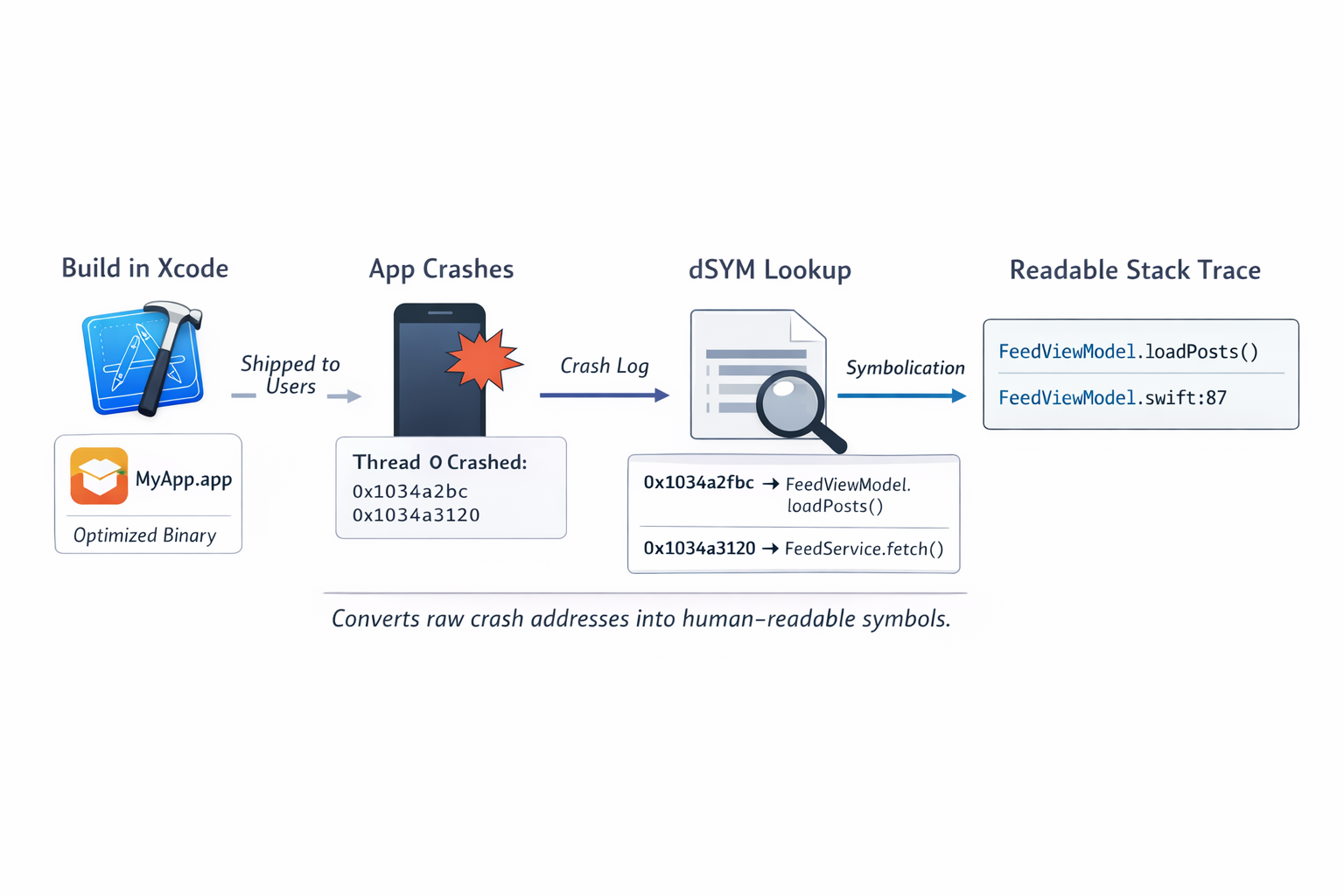
Here’s effectively what happens. When Xcode compiles our source code to machine code like we mentioned earlier, it generates an extensive list of symbols for our app. Think class names, structs, variables, methods, and function names. These symbols always map to the specific files and line numbers where they are defined in the app’s source code.
When we’re running a debug build of our app, the debug symbols are directly contained in the compiled binary of the app (duh, makes sense, that’s why it’s called a “debug” build 😆)
But for Release builds, the debug symbols are split from the app binary and placed in a companion .dSYM file. This is done to reduce the size of the Release build that is distributed to our users on TestFlight or App Store.
So when a crash happens in production, the crash report will contain a stack trace of all the threads that were running when our app crashed. The important thing to remember is that these stack traces are simply memory addresses. This is where the dSYM files become useful. Whatever crash reporting service you’re using will use the debug symbols to translate those memory addresses into human readable code. This process of translation is called symbolication.
Example: Unsymbolicated vs Symbolicated Crash
Without .dSYM files, a crash report might look like this:
1
2
3
Thread 0 Crashed:
0   MyApp   0x00000001034a2fbc
1   MyApp   0x00000001034a3120
After symbolication using the correct dSYM files, the same crash becomes readable:
1
2
3
4
Thread 0 Crashed:
0   MyApp   FeedViewModel.loadPosts()
            FeedViewModel.swift:87
1   MyApp   FeedService.fetchPosts()
A fully symbolicated crash report will have function names on every frame of the backtrace instead of hexadecimal memory addresses. This is why we need to upload the debug symbols (.dSYM files) to our crash reporting solutions.
Lastly, every binary file in an app has its own dSYM file. This means if you have an iOS app that also has a watch app and uses a framework, you will need to upload a separate dSYM file for each of those binaries.
So TLDR, dSYM files are files that help us translate gibberish memory addresses into human readable crash reports that can tell us which file, function, and specific line the crash happened in.
How to Find Your App’s dSYM Files
You can find your app’s dSYM files in a few common places.
If you archive your app in Xcode, open Xcode and go to Organizer. Select your app archive, then click Show in Finder. Inside the archive, right click and choose Show Package Contents. You will find the .dSYM files inside the dSYMs folder.
If you are building locally, dSYM files can also be found in Xcode’s DerivedData directory. Inside DerivedData, navigate to your app’s build folder, then look inside the Release build output for .dSYM files.
If you are using CI, most CI systems generate dSYM files as part of the archive step. These are usually uploaded automatically to crash reporting tools or stored as build artifacts.
Make sure you keep these dSYM files for every release, since symbolication only works when the dSYM exactly matches the binary that was shipped.